Friday, March 23, 2018

SAP TCodes

T-Codes Description T-Codes Description
FILE Logical File Path Definition AL11Files on server path
FIBF Business Event Transactions SU01User Role Assignment and Information
LBWG Deletion of setup tables SU53Authorization Object Errors
NPRT Log for setup of statistical data SP01Spool Requests
RSANWB APD Tcode SM62Creating Events
RSA1 Dataware house SQVICreating Joins / Dynamic Reports / SQL Query
RSA2 Display datasources RS_LOGSYS_CHECKCheck Source Systems
RSA3 Extract Checker RSODSO_SETTINGSDSO Settings
RSA5 Installing Data Source ST02 / 06Tune Summary ( CPU Utilization )
RSA6 Activated Datasources RSECADMINManagement of Analysis Authorizations - Roles
RSA7 BW Delta Queue LINK /ASU/STARTUpgrade Tool
RSBBS Jump Queries BD22Delete Change Pointers
RSBO InfoSpoke CHANGERUNMONIMonitor for Attribute Change Runs
RSDS Datasource Repository (replicate ds) BPHCRM Display BP Group Hierarchy
RSECAUTH Maintain Authorizations RSTMSAMOTMS Alert Viewer ( can be used for authorization checks )
RSKC Maintainance of Permitted characters STMSTransport Management System
RSPC Process Chain WE20EDI Partner Profiles ( Base table : EDPP1)
RSPC1 Single Process Chain SO23Creating email distribution Lists
RSRT Running the query SMQSqRfc Monitor / QOUT Scheduler / List of all systems connected 
RSRV Analysis and Repair of BI Objects SM59Configuration of RfC Connections
SCC1 Client transfer of changed : transfer individual transport requests directly out for the source client into the the current client ( * Check the checkbox for Tasks ) SCMASchedule Manager: Scheduler - Charm - Process failed transports manually
SE01 Transportation Organizer (Display Logs) SCOTEmail Communications
SE03 Transport Organization Tools SMICMInternet Communication Monitor - web services related
SE09 List of User Transports STRUSTTrust Manager - Webservices related
SE11 Tables (Create, Display,Change) CRM_UIOpen UI for CRM ( Might ask for login )
SE12 Tables (Display) CRMD_ORDERCRM Transactions 
SE13 Dictionary : Technical Settings DBACOCKPIT DBA Cockpit System Storage Space
SE14 ABAP Dictionary : Database utility
SE16 Tables Maintainance
SE18 BADI Builders (C,D,C)
SE19 BADI Implementations
SE24 Class Builders
SE37 Function Modules
SE38 Report Programs
SE80 Module pool Program
SE91 Message Classes
SE93 T-Codes Creation
SM12 Lock Objects
SM13 Queue
SM37 Backgound Jobs
SM50 Back Ground Processess
SM51 SAP Server information
SM69 External Commands Maintainance
SO01 Inbox
SU53 User Authorizations
TBE01 Library of the Publish&Subscribe Business Transaction Event
TBE24 Customer Products
TRFCQOUT tRFC Queue Description (Outbound Queue)

Functional TCodes


T-CodeFunctionalityAssociated Tables
ME23NPurchase Order DisplayEKKO,EKPO,EKET Etc
MB55List of GR / IR BalanacesGives the POs which are still open - Goods Received Not Equal to Invoiced, EKKN, 2LIS_06_INV
ME2LPurchasing Document Number Per Vendor EKKO, EKPO etc. 2LIS_02 Datasources
MB03Material Document DisplayMSEG
VA01-02-03Sales DocumentVBAP,VBPA Etc
MSKUSpecial Stocks with Customer
IW12Display Document Flow - flow of Service, Orders,Confirmations, Sales Doc, Billing Doc etc.
SCDOChange Documents CDHDR,CDPOS,TCDOB
VK13Display Condition Records - Material Pricing ConditionsKONH, KONP, A Tables
MB51Material Document ListMSEG
UKM_BP_DISPLAY
Credit ExposureDatasource : 0FSCM_CM_4
VF04 / VF08    Bill Plans    SE38 Program : GNBILLDL

Running LIS Setup for single values in documents

Trick for running setup tables for individual documents

2LIS setup table program does not have ability to give individual or range of order numbers. So we either have to run open or create multiple jobs with multiple ranges.
BUT,
There is a way to run setup tables for individual values or ranges - but the thing is we can run it only in foreground - but again, if runs pretty fast and can be used for smaller loads.

Go to the setup program - and in the SD document range, give a greater value in the From and smaller value in To as shown below and Execute in Foreground.


System will give a pop up saying " Start of order processing " and take you to the next page as below.


Here, go to select options  and give the values in single values or ranges and execute it.
The setup will run for the values.
You can enter around 500-1000 individual entries here ( that is the number i tried. may be you can enter more values )

RODPS_REPL_TEST

This should be used instead of RSA3 for ODP datasources.

Note:
In my experience, it did not act like RSA3.
So, when we want to check if there are delta entries for a datasource, we can run the datasource in RSA3 in  'D' mode and we can see data for the next delta.
For say, 0FI_AR_4 has 120 entries in RSA3 for 'D'. When we pull delta from BW, we do get those 120 entries.

Same is not the case when using this program.
There should already be a subsctiption with delta init for us to check the delta entries.
Like, For checking delta entries for datasource 0FI_AR_4, directly running the program with "Replication Mode :  Extraction of Last Delta" created a new subscription in ODQMON and did a Init with Data -> A full load.
After that, re-running the program again, created a new queue time stamps from last load to the new time and pulled delta entries.
But, I am not sure if there is another way to check delta entries with out doing the Init with Data load.


Online Resources
Replication Test with RODPS_REPL_TEST : Click HERE

ODQ_CLEANUP

As the name suggests , this is used to perform the clean up activities for ODP related processes.

Program Name : ODQ_CLEANUP
This job will be automatically triggered when the datasources are initialized the first time.

Default Job :  ODQ_CLEANUP_CLIENT_100

Reorganizing Delta Queues
ODQMON --> Goto --> Reorganize Delta Queues


The default values can be changed.
This is how I did - Cancel the scheduled job in SM37.
Change the selection screen parameters - Save it as variant and then schedule a new job with the new variant in it.

Check below links for more information

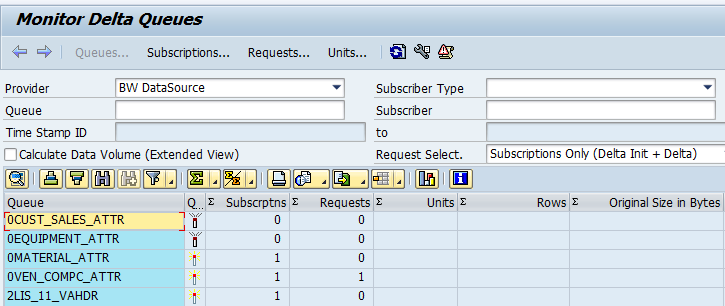
ODQMON


Below is the view of ODQMON.

Queues


Queue is created when a ODP datasource is created in any source systems. 
Queue status gives us if the queue is active / inactive in the system. Queue can be become inactive when [any | one (?)] subscription is deleted.
Subscription gives the count of subscriptions and requests gives total number of subscriptions.
You can click on "Calculate Data Volume ( Extended View ) to see more metrics. The reason it is not checked is that it takes more time to show the view due to all calculations.  

Subscriptions

Subscriber
This is the source from which we are requesting data. BW system is a subscriber.
Subscription
This is the name of the DTP ( for BW ) when technical name of switched on Or it will the timestamp on which the subscription is created.
Clicking on subcription takes you to the list of all subcriptions for that datasource.
You can see on the top that 'subscriptions' is greyed out which tells you which screen of ODQMON you are in.
Subscriber
Name of the subscriber. There can be multiple subscribers to a single ODP source. Below screen show has subcription from BW system.
Subscription : Name of the subscription. In case of BW, it would be name of the DTP created for the source.
Requests
No. of subscriptions for the datasource
Last TSN confirmed
TSN : Transaction Sequence Number.
This is the timestamp when the request was completed(?)
Last TSN Requested
This is when the request came from the source
Other fields give info.

Requests


Use Technical Names when reading data.
Composite Request
This is the DTP Request ID which initiated in BW by DTP. This can be found in DTP header details. If you switch off the technical names, you can see the timestamp in form
{2017-01-01 14:43:15 000009 EST} , else, you can see the DTRP_* ID .
Subscription
Name of the DTP / Timestamp when it was created, when technical names off
Extraction Requests
This has the timestamp when the request originated from the source.
Lower Limit for TSN
This is the timestamp of the last successful delta.
Upper Limit for TSN
This is when the new delta is triggered.
Point-To-Remember
ODP does not capture timestamps of delta when 0 records are extracted.
eg : A DTP is run at 10 PM on 4th January,2017 and then at 9:AM , 12:PM, 4 PM and 8 PM on 5th January,2017.
Delta 2017-01-04 22:00:00 had 10 records as delta.
Delta 2017-01-05 09:00:00 had 15 delta records
Lower TSN : 2017-01-04 20:00:00 Upper TSN : 2018-01-05 09:00:00
Delta 2017-01-05 12:00:00 had 0 records
Lower TSN : 2018-01-05 09:00:00 Upper TSN : 2018-01-05 09:00:00 - Because that was when delta records flowed.
Delta 2017-01-05 16:00:00 had 0 records
Lower TSN : 2018-01-05 09:00:00 Upper TSN : 2018-01-05 09:00:00 - Because that was when delta records flowed. The limits are same as earlier one.
Delta 2017-01-05 20:00:00 had 20 records
Lower TSN : 2018-01-05 09:00:00 Upper TSN : 2018-01-05 20:00:00 - The lower limit remains when the last delta with records to upper limit which is present timestamp.
Extraction Mode
Type of Extraction
Background Job
This is the job which extracts data . ODQ_<Date>_<TimeUTC>_<sequence>_C.
Selection
If any selections are present in the DTP

Units

This is where you can see the the actual request data. This only has requests which had delta records.
Unique Time Stamp ID - TSN
The sequential transaction number (TSN) sorts transactions that write data to the delta queue into a defined sequence, with regard to delta replications. The sequential transaction number is set at the end of a transaction, shortly before the database commit, and then assigned to the transaction ID of this transaction.
Transaction ID : 
The transaction ID identifies a transaction from the perspective of the delta queue. The ID is assigned to the queue at the start of a transaction, in other words, before data from this transaction is written to the queue. Therefore the ID does not necessarily reflect the commit sequence when two transactions are compared. The commit sequence is only defined when a TSN is assigned at the end of a transaction, shortly before the database commit
It also gives Rows, Size etc.
Double click on the TSN, and it gives you data this specific request has extracted.

Data is present in the queue depending on the "Reorganize Delta Queues" setting in the system.
Data can be retrieved as long as the request is seen but once reorg. delta queues are done, that delta will be missed.


Checking New Delta Records in ODP

For (some) of the regular datasources, when new deltas are generated, we can see them in RSA3. That is not the same for ODP datasources.
We need to see that data here in ODPMON.

Go to ODQMON -> Subscription. Here check  'Calculate Data Volume'.
If there are values showing up in the Units and Rows, that means that this datasource has new delta entries which can be extracted to BW or other source systems.
If it is 0, there are no delta entries generated after previous extraction.


If you want to see the records, double click in on the subscription and go to the requests and unit.
There is no pointer here to tell which transaction IDs are extracted in Target systems.
But, depending on the timestamps of the last extraction , we can see which of the TIDs are yet to be extracted.
TIDs are generated when there is a change in the system.So we do not have all the changes written to the same TID.
In the screen shot, there are 4 units and 20 Rows.
That does not mean, all the 20 rows are part of one TID. 8 rows can be written at one and 2 at one time and 10 at the other time.
When it is extracted to BW, everything from the last run is extracted.
This is kind of similar to seeing data in RSA3, expect we cannot see all the data at one, instead check individual TIDs depending on timestamp.

Do remember that if 'Calcualte Data Volume' is not clicked, we do not see entries in the subscription screen.