Friday, March 23, 2018

ODQMON


Below is the view of ODQMON.

Queues
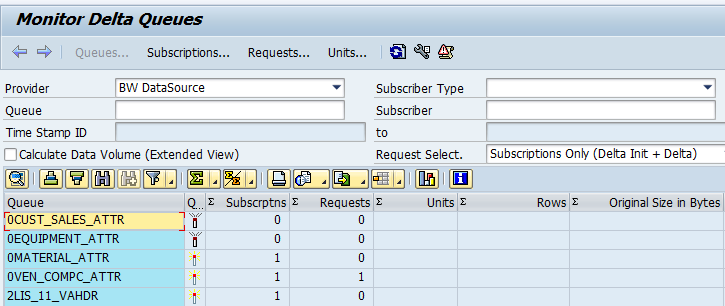

Queue is created when a ODP datasource is created in any source systems. 
Queue status gives us if the queue is active / inactive in the system. Queue can be become inactive when [any | one (?)] subscription is deleted.
Subscription gives the count of subscriptions and requests gives total number of subscriptions.
You can click on "Calculate Data Volume ( Extended View ) to see more metrics. The reason it is not checked is that it takes more time to show the view due to all calculations.  

Subscriptions

Subscriber
This is the source from which we are requesting data. BW system is a subscriber.
Subscription
This is the name of the DTP ( for BW ) when technical name of switched on Or it will the timestamp on which the subscription is created.
Clicking on subcription takes you to the list of all subcriptions for that datasource.
You can see on the top that 'subscriptions' is greyed out which tells you which screen of ODQMON you are in.
Subscriber
Name of the subscriber. There can be multiple subscribers to a single ODP source. Below screen show has subcription from BW system.
Subscription : Name of the subscription. In case of BW, it would be name of the DTP created for the source.
Requests
No. of subscriptions for the datasource
Last TSN confirmed
TSN : Transaction Sequence Number.
This is the timestamp when the request was completed(?)
Last TSN Requested
This is when the request came from the source
Other fields give info.

Requests


Use Technical Names when reading data.
Composite Request
This is the DTP Request ID which initiated in BW by DTP. This can be found in DTP header details. If you switch off the technical names, you can see the timestamp in form
{2017-01-01 14:43:15 000009 EST} , else, you can see the DTRP_* ID .
Subscription
Name of the DTP / Timestamp when it was created, when technical names off
Extraction Requests
This has the timestamp when the request originated from the source.
Lower Limit for TSN
This is the timestamp of the last successful delta.
Upper Limit for TSN
This is when the new delta is triggered.
Point-To-Remember
ODP does not capture timestamps of delta when 0 records are extracted.
eg : A DTP is run at 10 PM on 4th January,2017 and then at 9:AM , 12:PM, 4 PM and 8 PM on 5th January,2017.
Delta 2017-01-04 22:00:00 had 10 records as delta.
Delta 2017-01-05 09:00:00 had 15 delta records
Lower TSN : 2017-01-04 20:00:00 Upper TSN : 2018-01-05 09:00:00
Delta 2017-01-05 12:00:00 had 0 records
Lower TSN : 2018-01-05 09:00:00 Upper TSN : 2018-01-05 09:00:00 - Because that was when delta records flowed.
Delta 2017-01-05 16:00:00 had 0 records
Lower TSN : 2018-01-05 09:00:00 Upper TSN : 2018-01-05 09:00:00 - Because that was when delta records flowed. The limits are same as earlier one.
Delta 2017-01-05 20:00:00 had 20 records
Lower TSN : 2018-01-05 09:00:00 Upper TSN : 2018-01-05 20:00:00 - The lower limit remains when the last delta with records to upper limit which is present timestamp.
Extraction Mode
Type of Extraction
Background Job
This is the job which extracts data . ODQ_<Date>_<TimeUTC>_<sequence>_C.
Selection
If any selections are present in the DTP

Units

This is where you can see the the actual request data. This only has requests which had delta records.
Unique Time Stamp ID - TSN
The sequential transaction number (TSN) sorts transactions that write data to the delta queue into a defined sequence, with regard to delta replications. The sequential transaction number is set at the end of a transaction, shortly before the database commit, and then assigned to the transaction ID of this transaction.
Transaction ID : 
The transaction ID identifies a transaction from the perspective of the delta queue. The ID is assigned to the queue at the start of a transaction, in other words, before data from this transaction is written to the queue. Therefore the ID does not necessarily reflect the commit sequence when two transactions are compared. The commit sequence is only defined when a TSN is assigned at the end of a transaction, shortly before the database commit
It also gives Rows, Size etc.
Double click on the TSN, and it gives you data this specific request has extracted.

Data is present in the queue depending on the "Reorganize Delta Queues" setting in the system.
Data can be retrieved as long as the request is seen but once reorg. delta queues are done, that delta will be missed.


Checking New Delta Records in ODP

For (some) of the regular datasources, when new deltas are generated, we can see them in RSA3. That is not the same for ODP datasources.
We need to see that data here in ODPMON.

Go to ODQMON -> Subscription. Here check  'Calculate Data Volume'.
If there are values showing up in the Units and Rows, that means that this datasource has new delta entries which can be extracted to BW or other source systems.
If it is 0, there are no delta entries generated after previous extraction.


If you want to see the records, double click in on the subscription and go to the requests and unit.
There is no pointer here to tell which transaction IDs are extracted in Target systems.
But, depending on the timestamps of the last extraction , we can see which of the TIDs are yet to be extracted.
TIDs are generated when there is a change in the system.So we do not have all the changes written to the same TID.
In the screen shot, there are 4 units and 20 Rows.
That does not mean, all the 20 rows are part of one TID. 8 rows can be written at one and 2 at one time and 10 at the other time.
When it is extracted to BW, everything from the last run is extracted.
This is kind of similar to seeing data in RSA3, expect we cannot see all the data at one, instead check individual TIDs depending on timestamp.

Do remember that if 'Calcualte Data Volume' is not clicked, we do not see entries in the subscription screen.

ODP

Introduction

Operational Data Provisioning provides a technical infrastructure that you can use to support two different application scenarios. 
- Operational analytics for decision making in operative business processes. 
- Data extraction and replication.

Here mostly we will talk only about Data Extraction and Replication ( and mostly to BW ).


The R.H.S shows Providers which supply data to ODQ which is read by Consumers ( Subscribers ).
Eg : Here, Datasource ( Extractors ) basically refers to BW Extractors ( eg: 0FI_AP_4 or 2LIS_02_ACC etc.).
Once the datasources are ODP enabled ( SAP Note 0002232584 ) , They act as ODP Providers.
When BW System is reading data from ODQ, it becomes the subscriber.

One Source can provide data to multiple subscribers.
0FI_AP_4 Data can be read by SAP BW, SAP Data Services etc.

Context
A context represents a source of ODPs.
( Providers - Like sources which can be used - like SAP Extractors, HANA Views ? ).
Context identifiers exist for all technologies whose analytical views can be exposed as ODPs.
Determination of available contexts in system is done
via CL_RODPS_DEFAULT_CONTEXT->GET_CONTEXT_LIST


The main advantage of ODP in BW is we need not use PSA anymore ( that also means, we cannot correct invalid records in PSA - May be we can use Error DTPs ? )

ODP FAQs       - Click HERE
ODP Overview - Click HERE

Creating a ODP Datasource
Creating and ODP datasource is same as regular datasources.
If you know the datasource already exists in your source system, you can either replicate the datasource or create a datasource by right clicking.
Make sure that the datasource is ODP enabled before creating.Running BS_ANLY_DS_RELEASE_ODP make a datasource available as an ODP.

You can use the same name as the regular datasource and rename it.
once the datasource / transformation / DTP is created, run the DTP and it will create an entry in ODQMON.

Points to Remember
  • Check if a datasource is ODP enabled. If the right hand side icon is Green, it is released and can be used. If red, we need to implement below mentioned note and other steps to make them available.
  • Implement SAP Note 0002232584 to release datasources to ODP. 
    • This will install program BS_ANLY_DS_RELEASE_ODP when executed, This program add entry in table ROOSATTR and makes field EXPOSE_EXTERNAL = ‘X’.
    • Run program RODPS_OS_EXPOSE to expose zdatasources to ODP.
  • Not all datasources in the excel sheet are relaeased
    • Not all datasources are released for ODP. Go to RSA5/6 and check the datasource. If the datasource is in red  , it means it is not released for ODP.
    •   Eg: 0EQUIPMENT_ATTR
    •   Check Note 2173041
  • Initialization
    • There is no separate initialization. DTP when run for the first time, does initialization along with data load. There is an option to do init with out data transfer ( Delta init with out data).
    • When the DTP is run again, it will act as Delta DTP.
  • Delta Functionality
    • Everything remains same the jobs in the background. It's just that the collective job would now write to ODQMON. If the same data source is used for traditional approach as well then the delta would be written to both ODQMON and RSA7.


Change Mode Field : ODQ_CHANGEMODE
'C' The data record was created as new record in the source.
'U' The data record was changed in the source. Depending on the delta procedure, the delta can contain up to two data records for one changed record in the source.
'D' The data record was deleted from the source.

ODP Tables

Tables

Description

Extra Notes

ODQDATAData Store for DeltaContains all compressed Delta request Data
ODQDATA_FData Storage for One-Off ExtractionContains compressed Full request Data
ODQDATA_CData Storage for Delta Init.Contains compressed Init request Data
ODQREQOperational DeltaQueue: General Request

ODP TCodes & Std.Programs

Name

Description

Extra Notes

ODQMONODP Delta monitorMonitor for all delta queues : Notes
ODP_CLEANUPClean up programNotes
RODPS_REPL_TESTCheck data in the delta - Like RSA3Notes
BS_ANLY_DS_RELEASE_ODPReleases datasources to ODPSAP Notes 2232584 
RODPS_OS_EXPOSERelease Z Datasources to ODP

Errors and Solutions

Click HERE

DTP Failures
Subscription for DTP_ deleted in source system ODP...... See long text.

Online content
Data Acquisition with ODP and SLT (SAP) - Video
Reporting on Operational Data Providers     - Link
Data Loading to BW From ECC using ODP – SAP HANA Information Views - Link
Logistics(LO) Extraction with ODP Framework - Link

Core Data Services

Introduction
ABAP Core Data Services - Introduction ( ABAP CDS View ) - Click HERE 
Points to Remember
  • CDS started with BW 7.4 but is more effective from BW 7.5
  • CDS Views need to be transported from system to system
  • Created using eclipse interface
  • Used to create complex joins
  • Can be read from IDT

Syntax

Tables

Description

Link/Notes

Remove Leading Zeroes ltrim(matnr,'0') as Matnr_Test link
Substring    substring(date,1,4) as begin_year,


Concatenationconcat('A','B')

N
ested concat
concat(substring(date,1,4),concat(concat('-',substring(date,5,2)),concat('-',substring(date,7,2)))) as Start_date1,
concat only takes 2 parameters at a time. if you need more than one concatenation, you need to nested concat statements
link


Useful Notes

Task    

Notes

Renaming CDS View    CDS views cannot be renamed once they are transported to another system ( link )    
Search for view CTRL+SHIFT+A ( link )


ABAP Messages

If there is an output message coming in the below format
 message id sy-msgid type 'S' number sy-msgno
          with sy-msgv1 sy-msgv2 sy-msgv3 sy-msgv4.

You can actually pas the whole message into a text variable using INTO
 message id sy-msgid type 'S' number sy-msgno  INTO DATA(lv_error_text)
          with sy-msgv1 sy-msgv2 sy-msgv3 sy-msgv4.

Wednesday, January 10, 2018

Email Settings in SAP

SAPCONNECT is used to maintain and send emails within SAP and out of SAP.

Tcode :
SCOT - SAP Connet
This is the main screen for all email related stuff.

Create 'Send Jobs'
A job needs to be scheduled in the system to trigger the emails which are present in the queue. In Tcode SCOT -> Settings -> Send Jobs.
Create a job here and schedule it.


SOST - SAPCONNECT Send request Queue

Configuring Outgoing emails in SAP in Process Chain
Make sure SAPCONNECT is configured.
In the Process Chain --> Right Click on the step you want to add email --) Check Option - Create Message and follow the screens and you should be able to create an email for that step.


Emails not being sent

There can be various reasons for emails not being sent. below are some items to check.

Look in STMP settings if 'Node in Use' is checked. If not, check that.
This can be done as follows.
Settings -> SMTP Connection -> Outbound Messages -> SMTP nodes.